Viewing History Values Graphically
The history data displayed in the History Values dialog box can also be displayed graphically, as shown below. All data is now graphable, unless the Point Data Type is String Input or String Output.
To view the history graph, click View graph >> on the History Values dialog box. The graph will only display the data that is visible in the history values list. Scroll up or down in the list of values to change the data that is displayed in the graph.
Notice the data that is displayed on the left pane window automatically creates the trend graph on the right with the data range of the values displayed. Increasing the size of the window also increases the date range for the points to be displayed. Scrolling through the values, will automatically update and refresh the trend graph with the correct corresponding data values. The data being displayed in the left pane, will automatically display a graph with the dynamic data.
Selecting a point on either of the panes will display a dot on the graph and highlight the selected line referenced by the data timestamp and value on the pane for ease of viewing values.
By right-clicking on the trend portion of the window a context menu is displayed.
|
History Values graph |
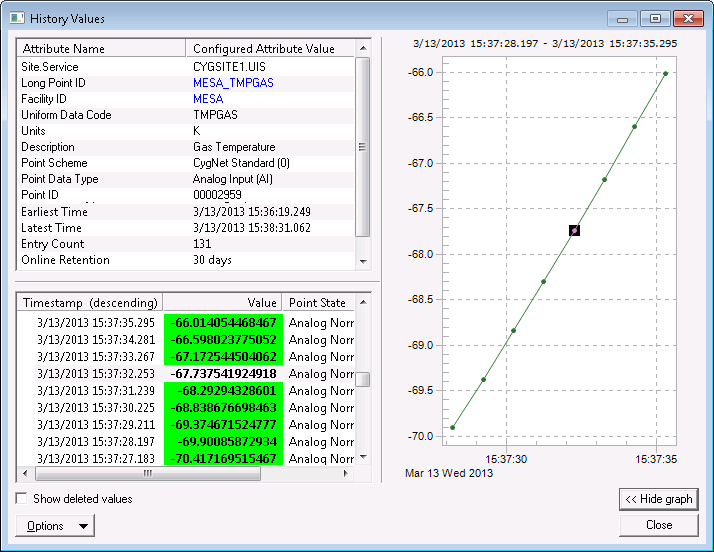
Other History Values dialog box features are described in the following table:
| Property | Description |
|---|---|
|
Show deleted values |
Click to see all deleted value points in both the pane and the graph. See Modifying History Data for more information. |
|
Hide Graph >> |
Click to close the trend graph pane. |
Options  |
|
|
Point Configuration |
Enables you to see the properties of a particular point. The PNT Point Record will be displayed. |
|
Facility Configuration |
Enables you to open the Properties for <Facility> for this point's facility. See Facility Service for more information. |
|
Export |
Select to save the values for this point to a CSV file. |
|
Graph Context Menu |
|
|
Dynamic Scale |
Select to allow the graph to auto-scale the data displayed. |
|
Export |
Select to save the values for this point to a CSV file. |
|
Hide |
Click to close the trend graph pane. |


